
How to remove a person from a video on iPhone
Use Dynamic Tracking to mark a moving person, let AI reconstruct the background, and review the result before saving.
1. Import and trim your video
Open Video Eraser on your iPhone or iPad and choose Dynamic Tracking. Import a clip from your Photos library, then trim it to the moment you want to edit. The current version supports removal clips up to 60 seconds.
2. Mark the person you want to remove
Use Auto to select the person, or Brush to paint the area you want to remove. Keep the selection close to the subject so that you preserve as much surrounding detail as possible.
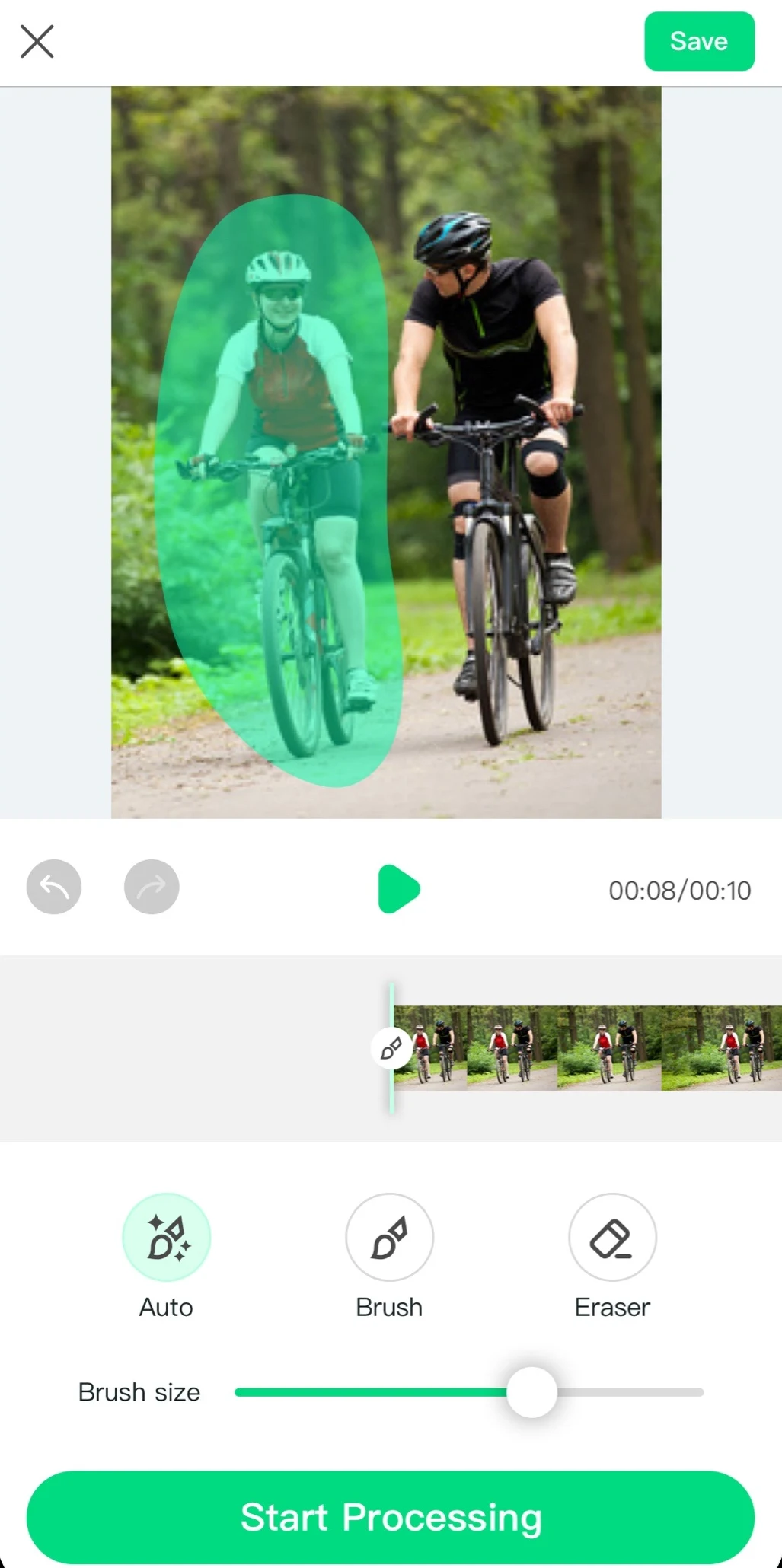
3. Review the mask and process
Play through the clip and check that the selection follows the person. Adjust it where needed. Check your available credits and the processing cost shown in the app, then tap Start Processing. An internet connection is required.
4. Review the result and save
Look through the processed clip, especially where the person overlaps other objects or leaves the frame. If the result works for your video, save it. If you see artifacts, try a tighter selection or a shorter section of the clip.
Choose a clip that gives AI room to work.
- A clear subject and a simple background are easier to reconstruct.
- Avoid selecting the person you want to keep.
- Fast camera motion, fences, text and overlapping subjects can leave visible artifacts.
- Work on a copy and keep your original video.
Need help with a particular clip? Contact support.
Product limits checked 2026-10-17 · App Store version 1.3.6