
How to remove text or a logo from a video on iPhone
Use Fixed Area to select your own title, timestamp or logo, process the clip, and check the result before saving.
1. Import a clip you have permission to edit
Choose Fixed Area in Video Eraser and import your video. Trim it to the part you want to change. The current version supports removal clips up to 60 seconds.
2. Select the text or logo region
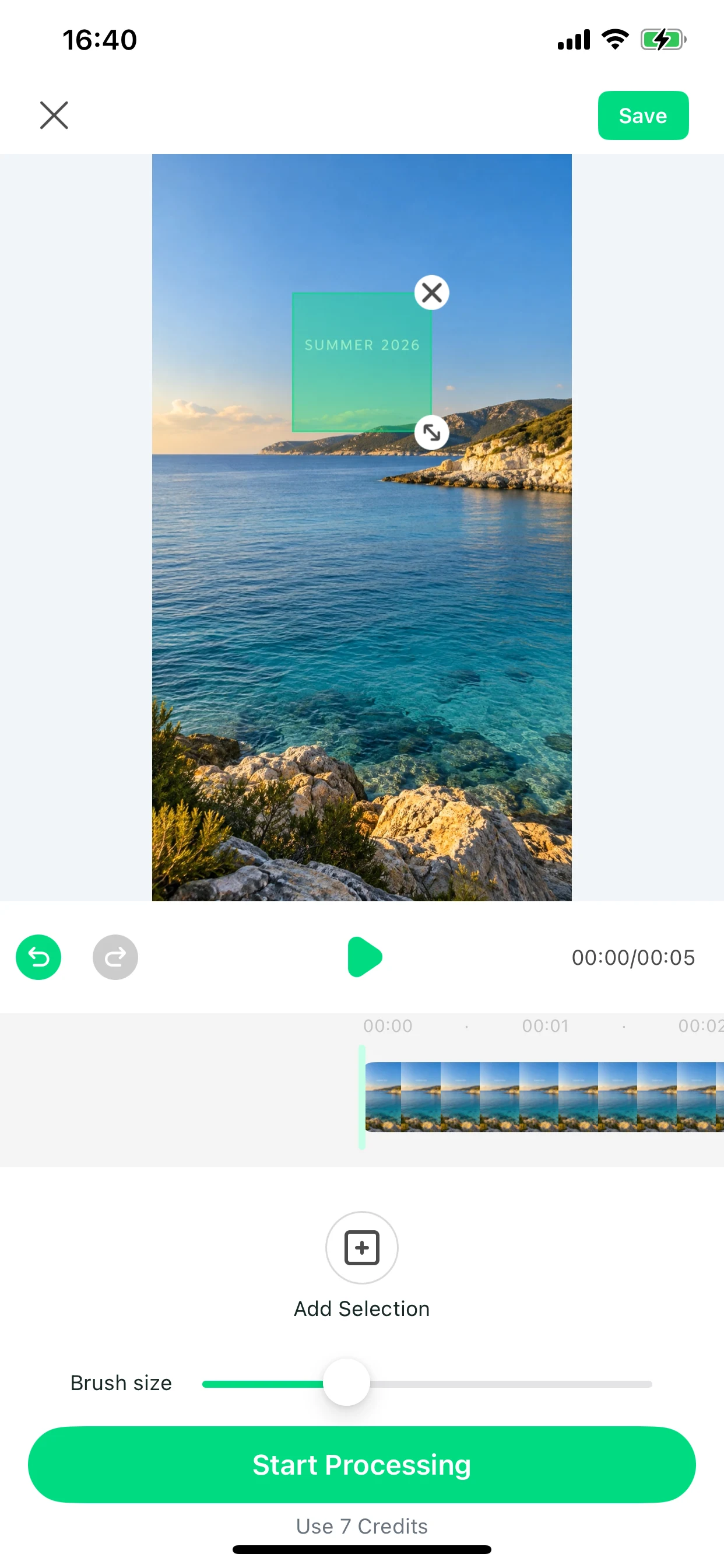
Position and resize the selection around the title, timestamp or logo. Keep it close to the area you want to remove. Use Add Selection when you need to mark another fixed region.
3. Check the selection across the clip
Play through the video to confirm that the text remains inside the selected region. Fixed Area works on a region of the frame; moving text or subtitles that change position can need extra edits.
4. Process, review and save
Check your plan, credit balance and the cost shown in the app. Tap Start Processing while connected to the internet. Review the entire result before saving, especially frames with movement or detailed backgrounds.
Keep the edit small and intentional.
- A small fixed title on a simple background is a useful starting point.
- Avoid covering important details that should remain in your video.
- AI may leave artifacts around fine lines, changing subtitles or fast motion.
- Only remove graphics from content you own or have permission to edit.
Need help with a particular clip? Contact support.
Product limits checked 2026-10-17 · App Store version 1.3.6